

Jambonz now supports WhatsApp Business Calling
WhatsApp configuration
Consult the WhatsApp documentation for how to get your WhatsApp business number enabled for calling,
We use the SIP integration from WhatsApp (not the graph API) and we recommend using SDES as the media transport instead of ICE/DTLS.
In order to setup your WhatsApp number for SIP you will need to make an API call
to WhatsApp to set the server HOSTNAME and PORT.
The hostname should be your jambonz.cloud sip realm found on your account page, e.g.accountname.sip.jambonz.cloud;
the port is `5061.
Once you have configured this on the WhatsApp API you should then be able to get your SIP_USER_PASSWORD from this link.
Our friends at NimbleApe have written a bash script to help with this setup
jambonz configuration
On jambonz we have added WhatsApp as a pre-defined carrier that will create a new Carrier in your account from our template.
On the Add a carrier screen simply select WhatsApp from the dropdown at the top.
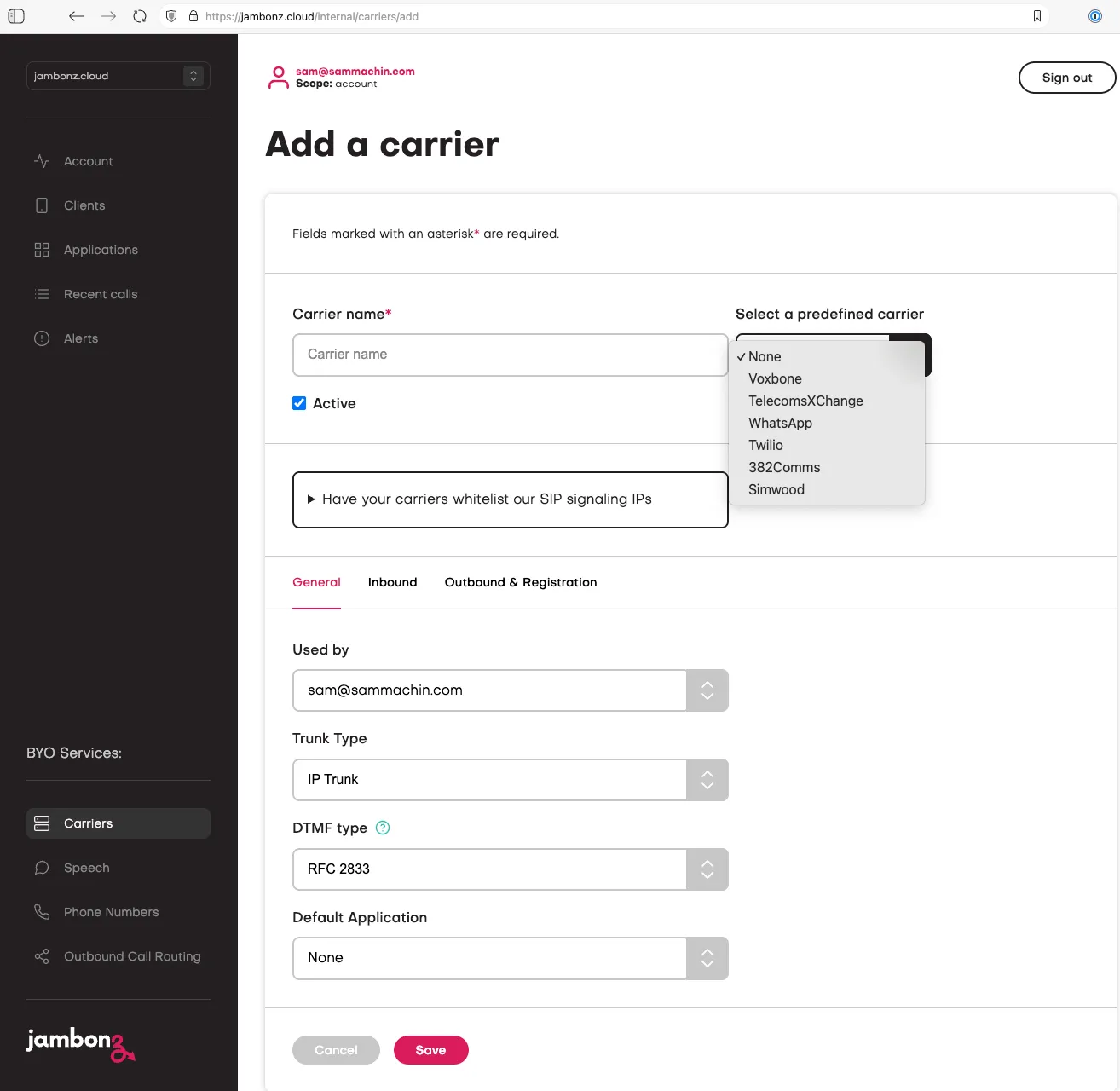
This will create an Auth Sip Trunk with an outbound gateway with TLS/SRTP to wa.meta.vc port 5061.
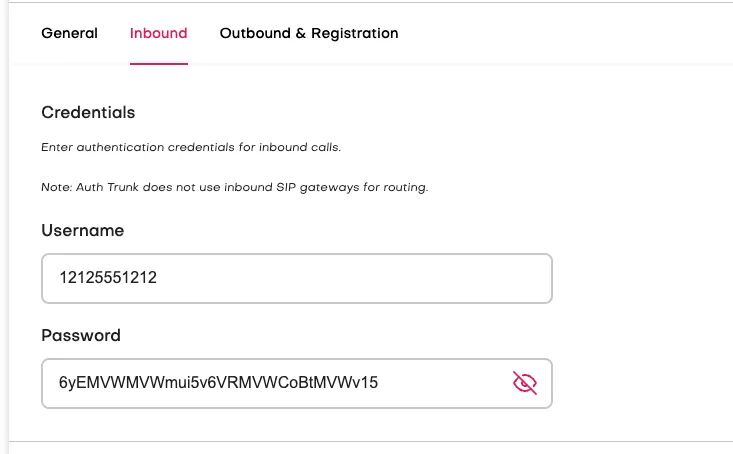
Now click the Inbound tab and edit the Username to be your WhatsApp Business number without the + symbol (e.g. 12125551212),
and in the Password field enter the SIP_USER_PASSWORD you got from the WhatsApp API.
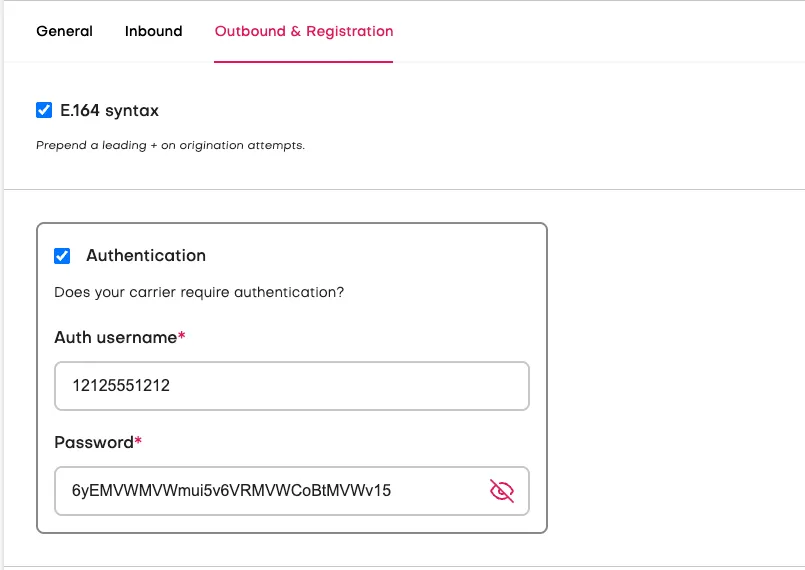
Next on the Outbound section add these same values to the Authentication section.
That’s it for the carrier settings, you can leave the rest as they are set and click the Save button.
Add phone number
Finally, add and configure your WhatsApp number in the jambonz portal. Navigate to “Phone Numbers” on the left-hand side and click the “Add phone number” button.
Enter your WhatsApp number, using international format and only numerical characters (e.g. “12125551212”). Next, select “the WhatsApp carrier you crated as the “Carrier”, and select the jambonz application you want to handle incoming WhatsApp calls.
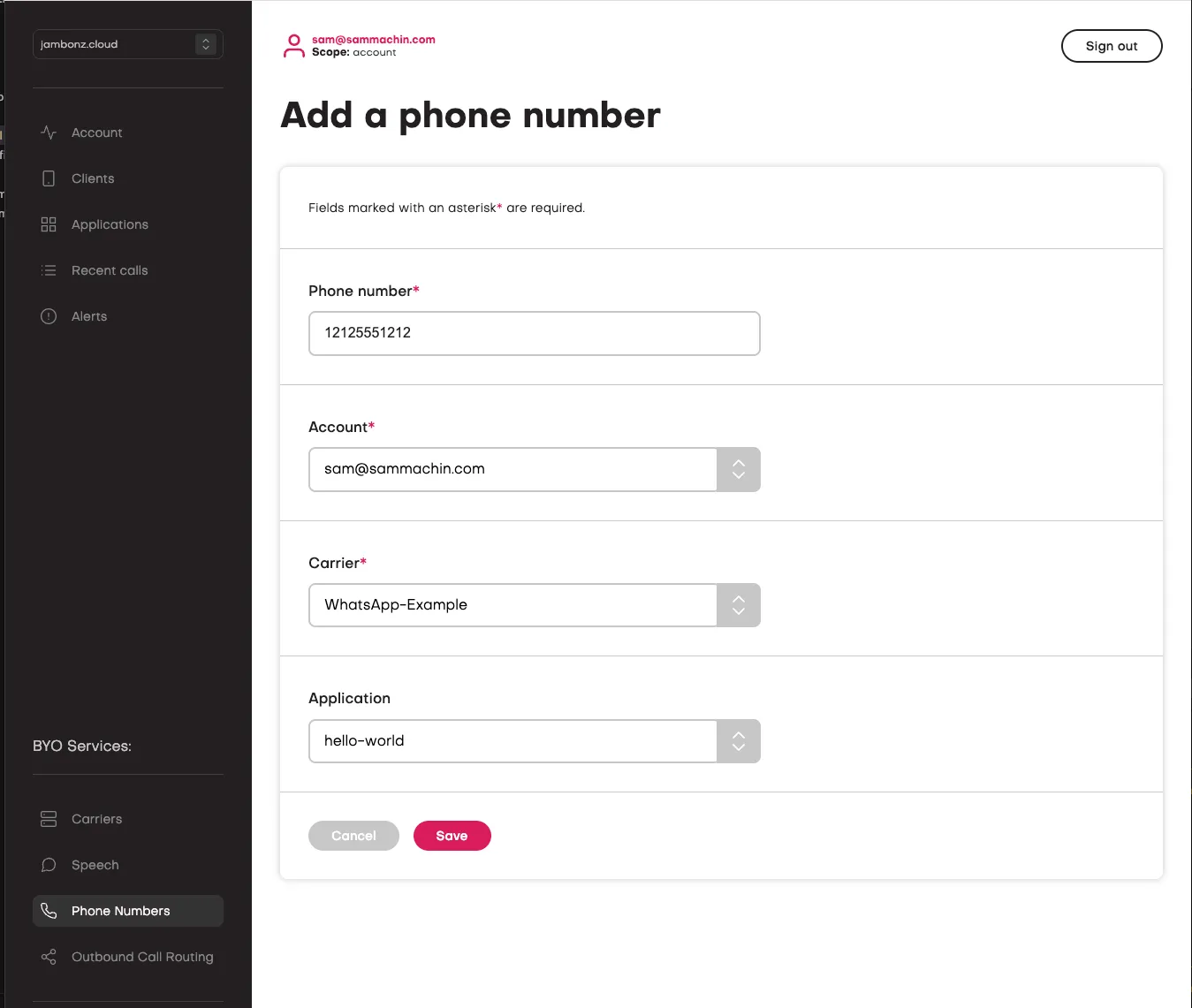
To finish, click “Save”. Now calls to your WhatsApp number should be routed to your jambonz application.
Note about Outbound calling.
When making an Outbound call from jambonz to WhatsApp you need to specify an additional header in the
Dial verb or the
Create Call method.
This header is named X-Preferred-From-Host and the value should be your jambonz sip realm;
this is required otherwise WhatsApp rejects the call.
Self Hosted Customers
Customers self-hosting with version 10.0.4 or greater can use this feature.
You will need to add an additional environment variable to the ecosystem.config.js file for sbc-inbound.
The line is JAMBONES_ACCEPT_AND_TRANSCODE: 'opus/16000'