

Node-RED
To add the jambonz plugins for Node-RED open Node-RED, click the hamburger menu at the top right, and then “Open Palette”.
Click the “install” tab and then type “jambonz” into the search input.
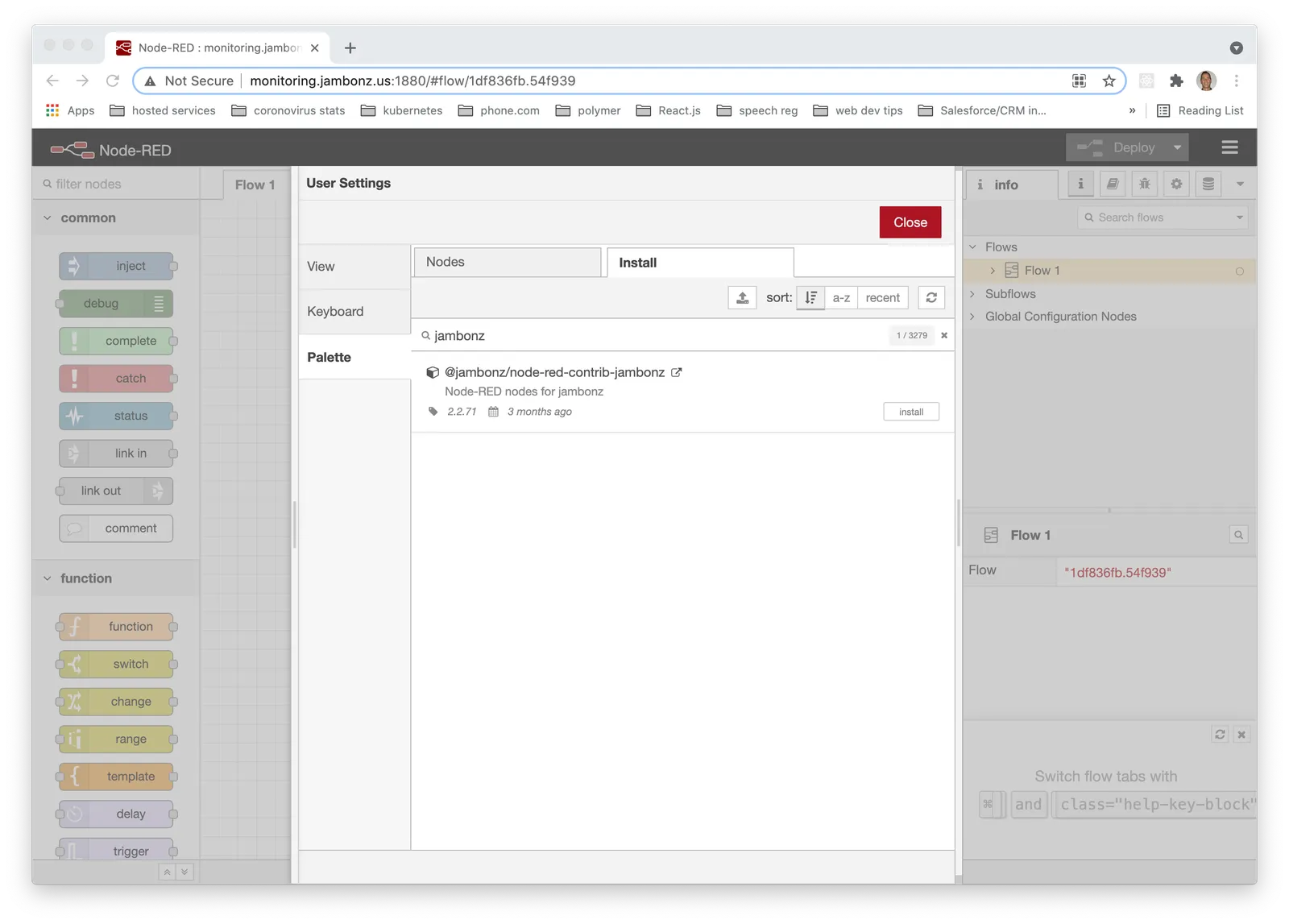
Click the “Install” button for @jambonz/node-red-contrib-jambonz, and confirm by clicking the Install button on the popup dialog.
This will add the jambonz nodes to your palette. Now you can drag them out onto the canvas to create flows that respond to webhook requests. Every flow should begin with a “webhook in” node and end with a “webhook out” node.
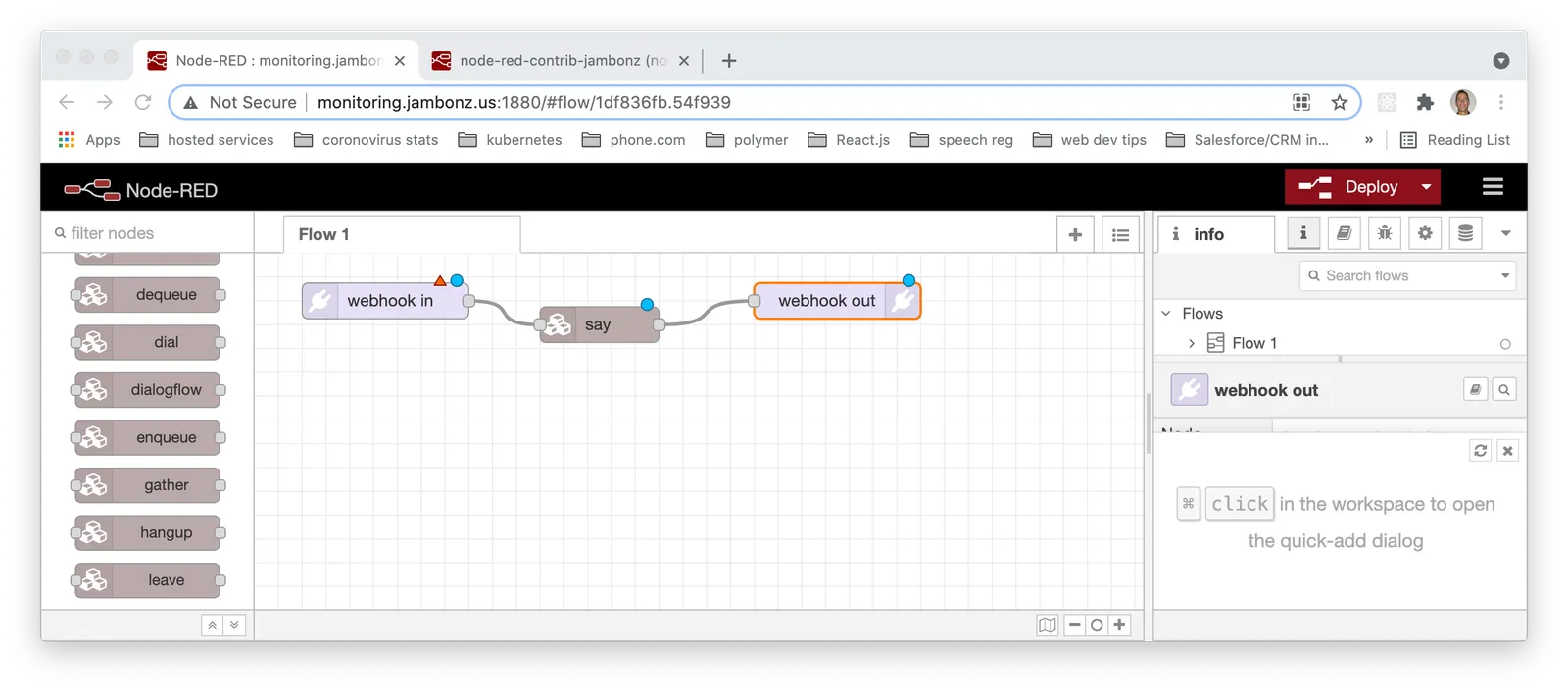
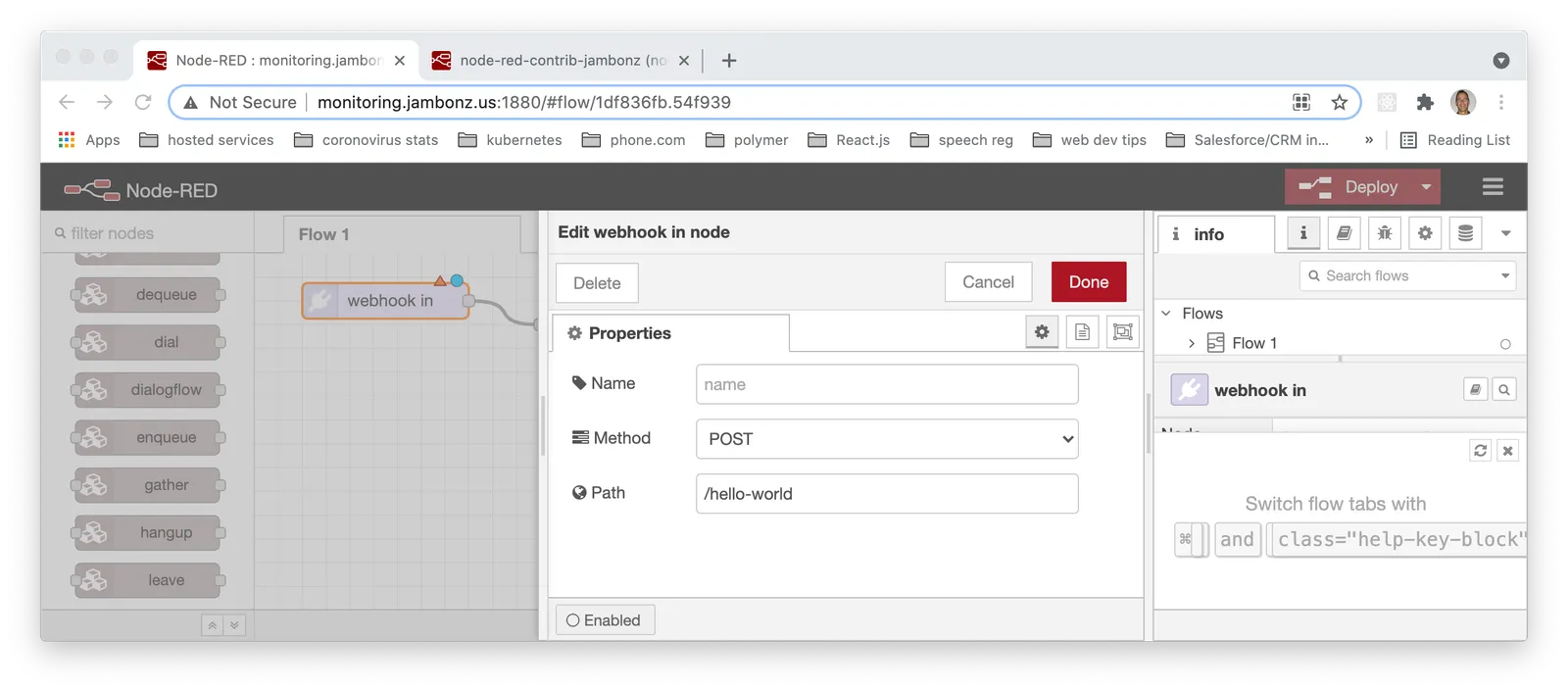
Configure the webhook in node by specifying the URL path and HTTP method that should trigger this flow.
There is no configuration needed for the webhook out node.
Most of the remaining nodes match up one to one to the jambonz verbs. Drag them out on the canvas, configure them and connect them in the ordered flow you want to achieve.
When you are done, click the Deploy button to deploy your changes. In the jambonz portal, create an application webhook with a URL and path that points to your Node-RED server and the flow that you have created.
Enjoy!